
Setting up OAuth Using Keycloak
The following describes how to set up Keycloak locally to test OAuth functionality in EJBCA.
A getting started with Keycloak on Docker guide is provided by Keycloak, see Keycloak documentation Keycloak on Docker.

Before you begin:
- Review the prerequisites, see OAuth Provider Management - Prerequisites.
- Note that the following instructions include sample values for setting up Keycloak on a local machine - ensure to replace values as required for your environment.
Step 1 - Start and Log in to Keycloak
From a terminal start Keycloak with the following command:
BASHdocker run -p 8084:8080 -e KC_BOOTSTRAP_ADMIN_USERNAME=admin -e KC_BOOTSTRAP_ADMIN_PASSWORD=admin quay.io/keycloak/keycloak:26.3.4 start-devPort 8080 is used by the EJBCA Public Web, and Keycloak is started exposed to port 8084. The command also creates an initial admin user with username
adminand passwordadmin. Again, you are only setting up a sandbox test environment and should not perform this in production.- Go to the Keycloak Admin Console on http://localhost:8084/admin and log in with the username and password created.
Step 2 - Create Realm and Client
A realm in Keycloak is the equivalent of a tenant and allows creating isolated groups of applications and users. By default, there is a single realm in Keycloak called master. This is dedicated to manage Keycloak and should not be used for your own applications.
To create a realm and client:
- Click on Manage Realms link on the left sidebar, and Create realm button in the Manage realms page.
- Enter Realm Name=myrealm and click Create.
- Confirm that current realm is myrealm
- Go to Realm Settings>Keys and copy the Kid value for the RSA key (that will be used when configuring Trusted OAuth Providers in EJBCA in a later step) and download the public key.
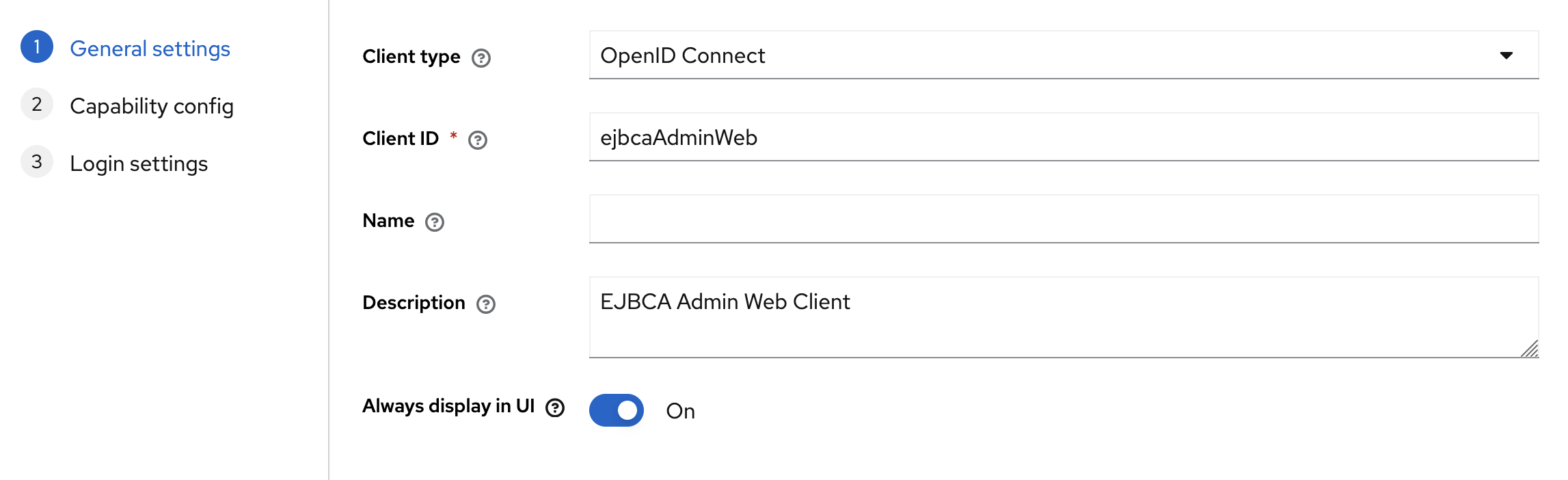
Alternatively, check http://localhost:8084/realms/myrealm/) - Click Clients link on the left sidebar, and Create client button to create a new client and specify the following. Under General Settings:
- Client Type: openid-connect
- Client ID: ejbcaAdminWeb
- Under Login settings:
- Root URL: https://localhost:8442/ejbca/adminweb/
Set Valid Redirect URIs to https://localhost:8442/ejbca/adminweb*
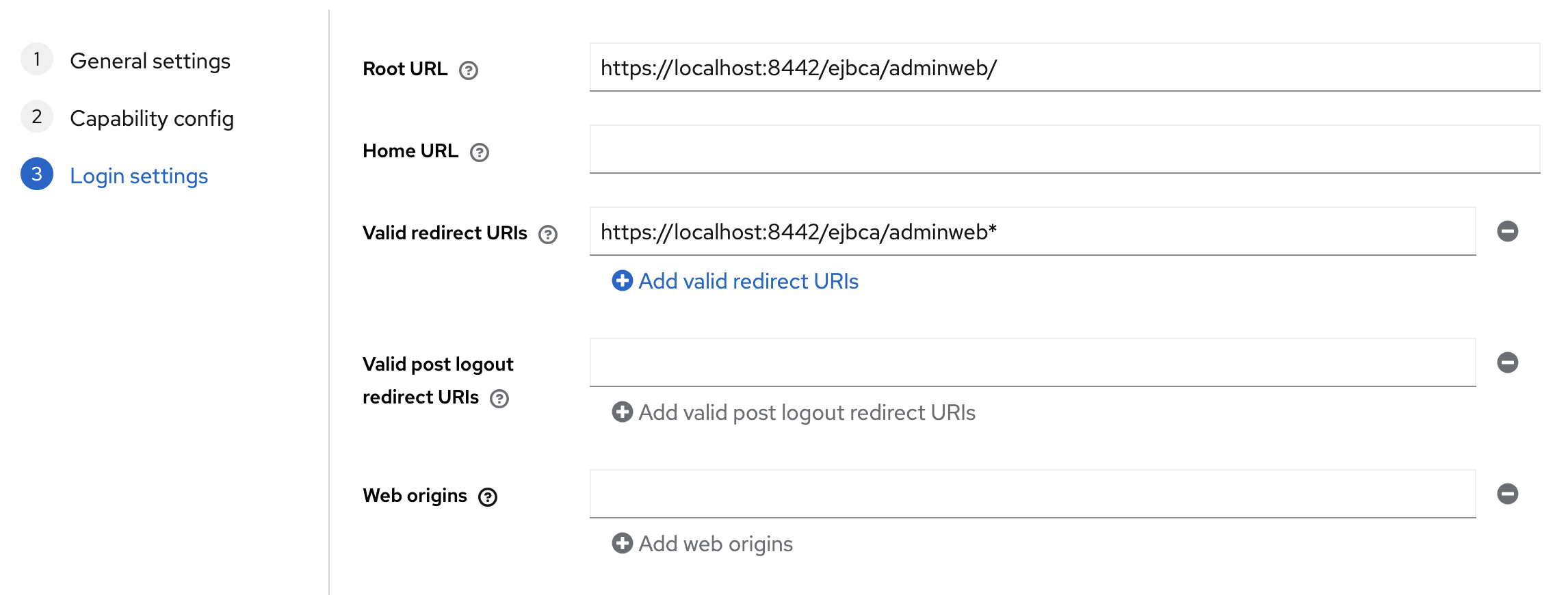
Consider using exact Valid redirect URIs (for example:
https://localhost:8442/ejbca/adminweb/) instead of using wildcards to improve security. Wildcard valid redirect URIs are not recommended for production and not covered by the OAuth 2.0 specification.- Enable Client Authentication.
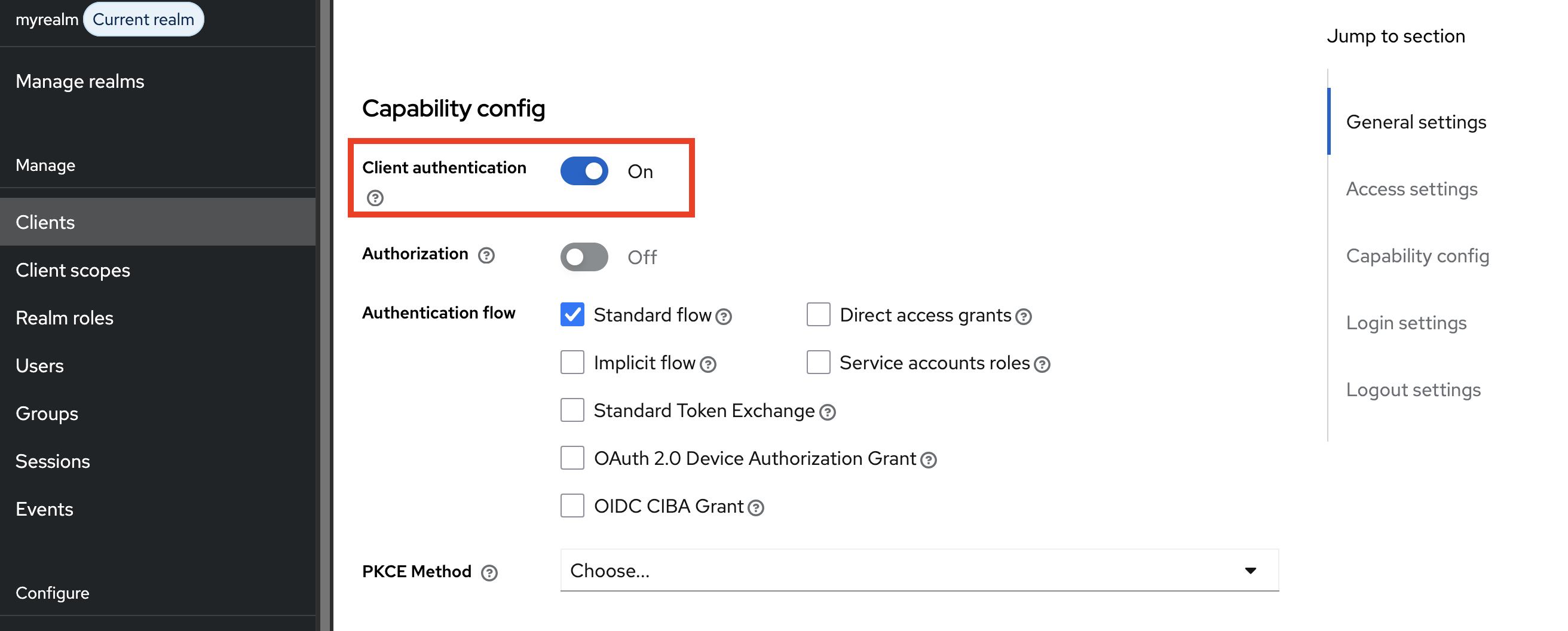
- Configure the Audience (aud) claim according to the guide on Configuring Audience Claims.

Step 3 - Add OAuth Provider in EJBCA
Next, configure OAuth Providers in the EJBCA System Configuration:
- In EJBCA, go to System Configuration>Trusted OAuth Providers.
- Click Add to create an OAuth Provider and specify the following:
- Select the OAuth Provider Type=Keycloak.
- OAuth Provider Name: Specify a unique label for the provider.
- URL: Set the base login URL for the provider. For this local testing with Keycloak, use http://localhost:8084.
- Fetch UserInfo (optional): Select this if the UserInfo endpoint should be used to fetch claims about the User. In our example case we don't need it.
- UserInfo URL (optional): If Fetch UserInfo was selected then this should be filled in with the URL of the UserInfo endpoint. In our local example this would be http://localhost:8084/realms/myrealm/protocol/openid-connect/userinfo.
- Realm Name: Specify the name selected previously when creating the realm.
- Audience: a value of aud claim in token configured with mappers in Keycloak.
- Disable Audience Check (not recommended): This setting is useful when working with some other OAuth providers which don't set the aud claim when the user logs in. This setting should generally not be used with Keycloak.
- Client Name: Specify the Client ID selected previously when creating the realm.
- Client Secret: Set it to the Clients → Client ID → Credentials → Client Secret value from Keycloak.
- OAuth Key Identifier: Add an OAuth Key Identifier using the Kid value copied earlier.
- Upload Public Key: Upload the downloaded Public Key file as Current Public Key and click Upload Public Key to add the key to the provider.
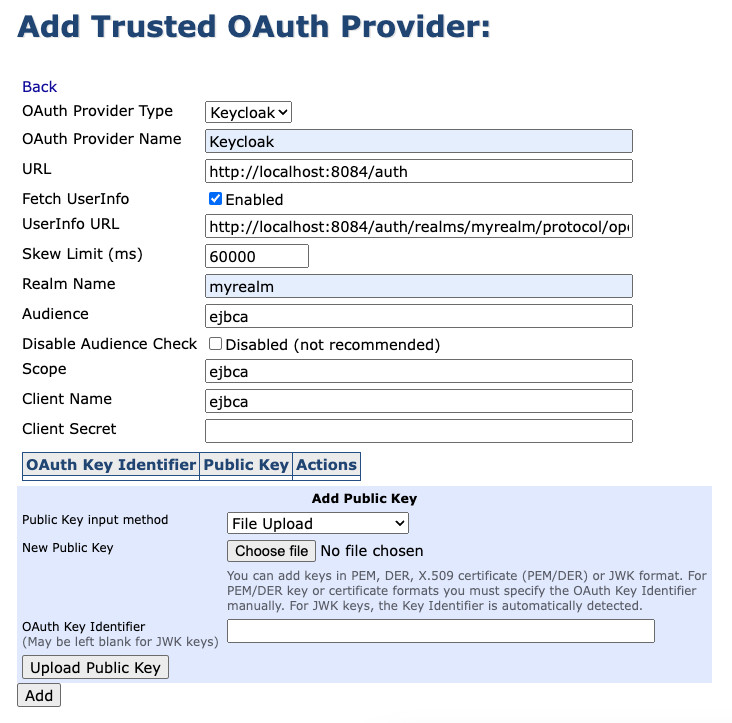
- Click Add to create the OAuth Provider.
How to find Url to upload Public keys
In the Keycloak Admin Console click Realm Settings > General and open Endpoints url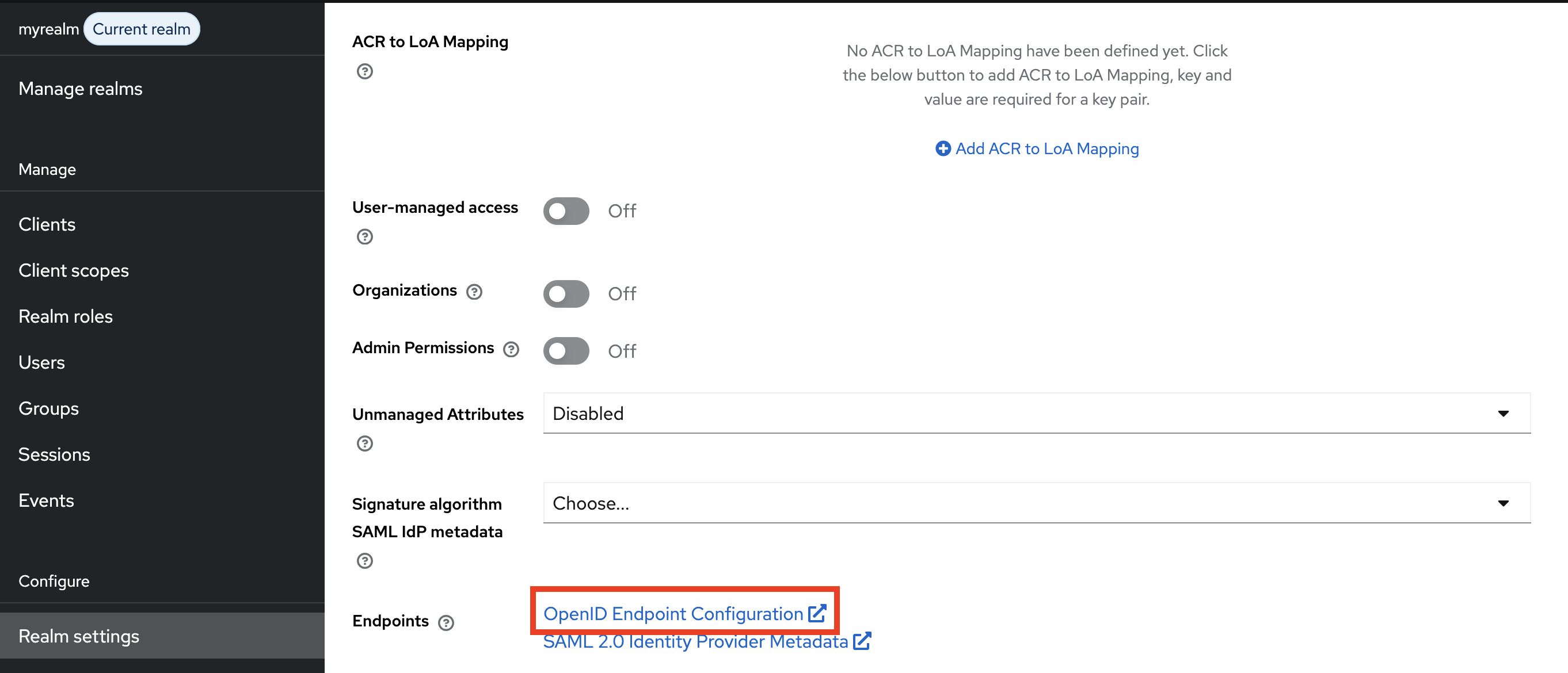
You need jwks_uri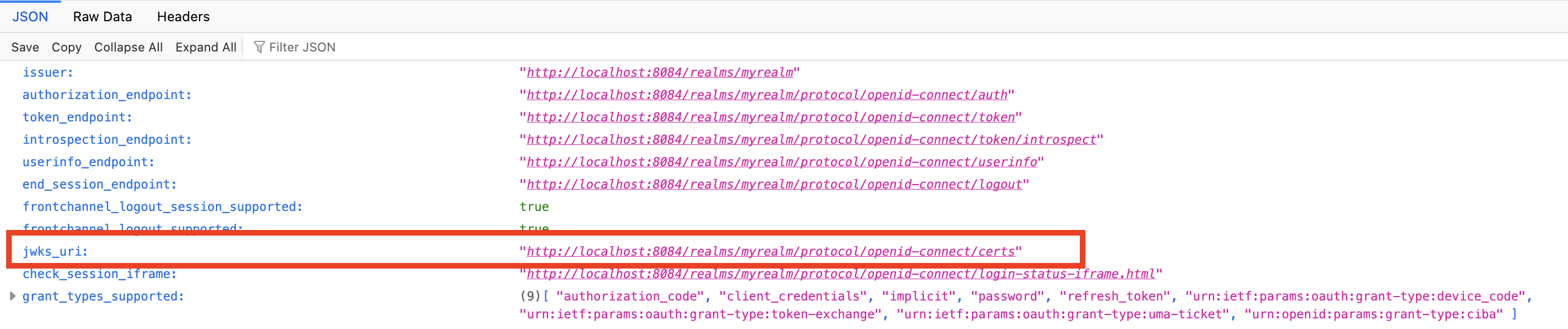
Optional: Enable dynamic key retrieval with OAuth Key Update Worker
The service periodically downloads public keys for the configured provider(s) and updates the internal configuration accordingly, instead of manually adding keys.
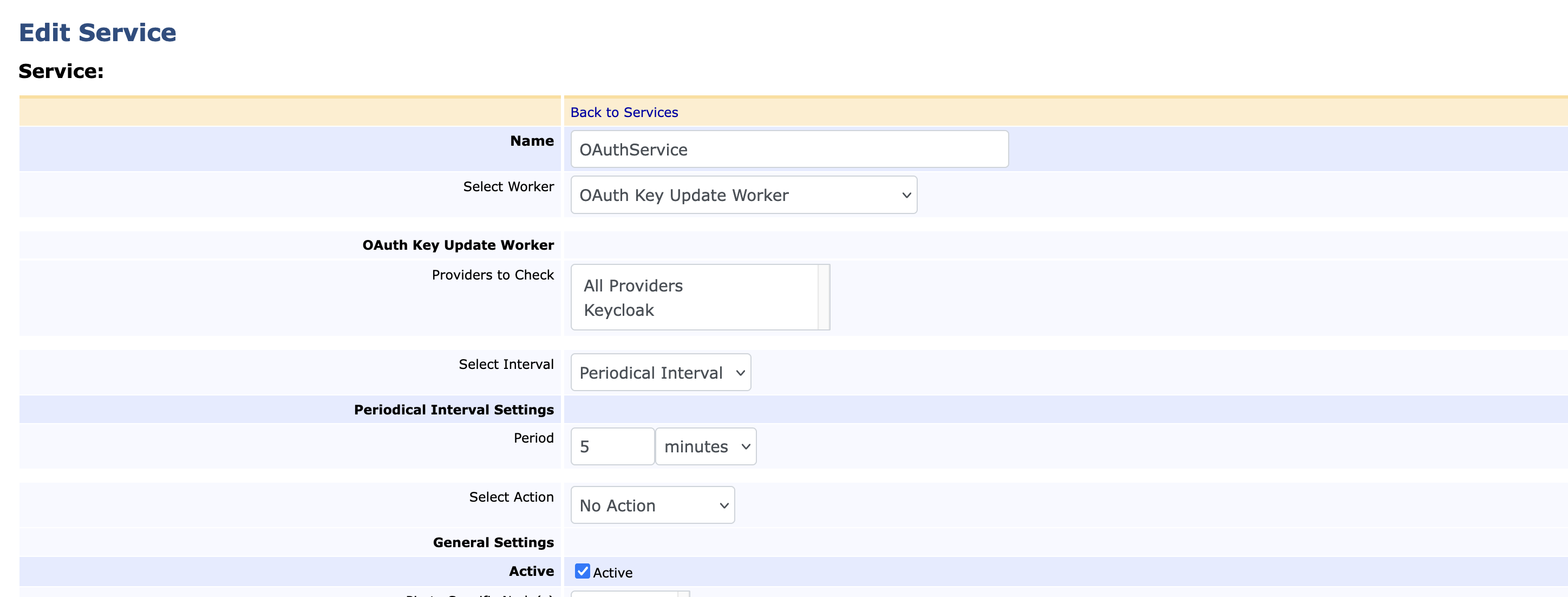
- Create a OAuth Key Update Worker service. System Functions > Services and Add a new service.
- Select OAuth Key Update Worker as service type.
- Select the OAuth Provider from the "Providers to Check" section.
- Update Interval Settings, and check Active checkbox.
- Update OAuth Provider to use dynamic key retrieval. System Configuration > Trusted OAuth Providers
- Edit the provider
- Select "Provide key config url" options for Add Public Key
- Use the above jwks_uri for the configuration url (for example:
http://localhost:8084/realms/myrealm/protocol/openid-connect/certs) - And save.
Step 4 - Create User in Realm
To create a user in the realm:
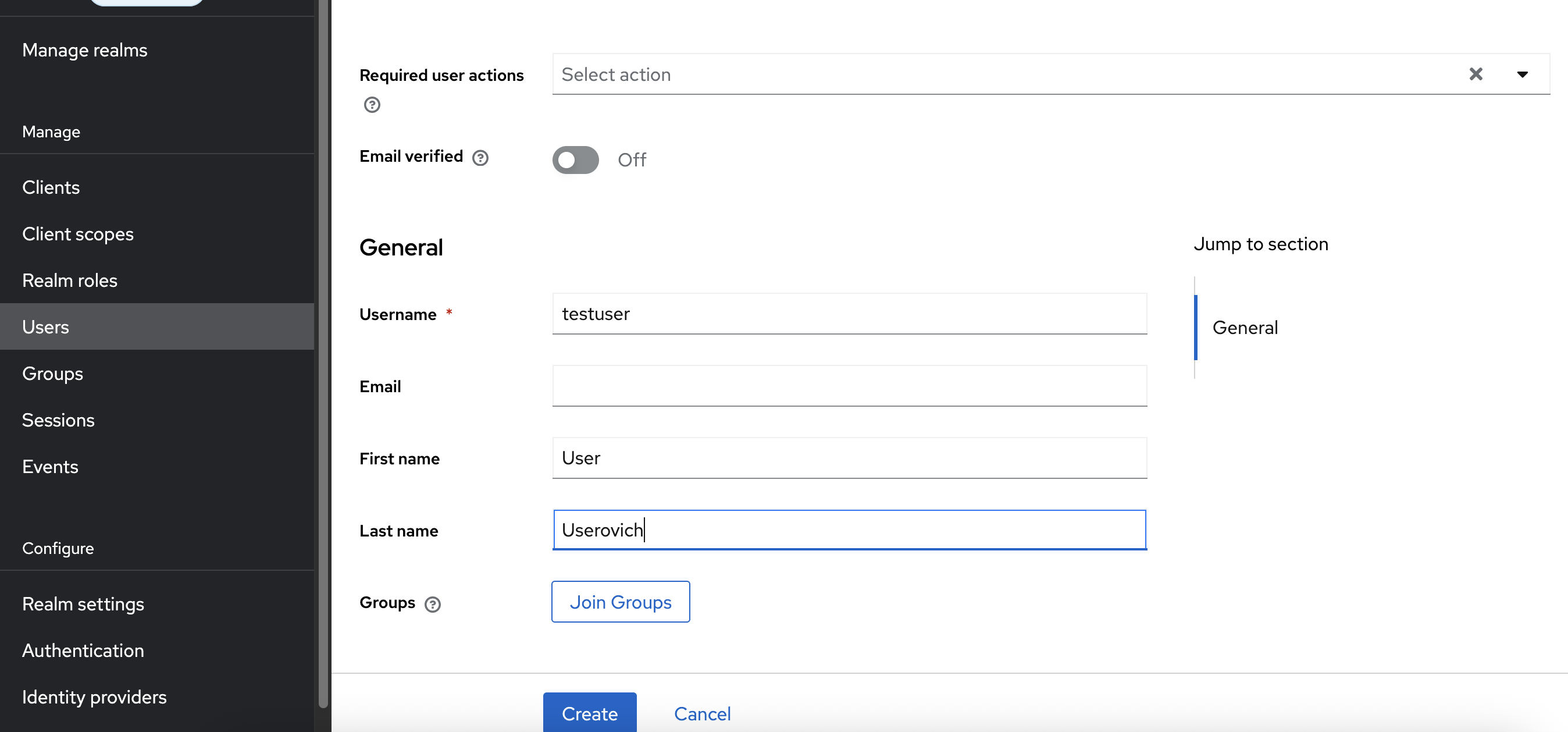
- In the Keycloak Admin Console, click Users>Create New User.
- Specify a Username, First Name, and Last Name, and then click Save.
- To set an initial password for the user, click the Credentials tab and Set Password.
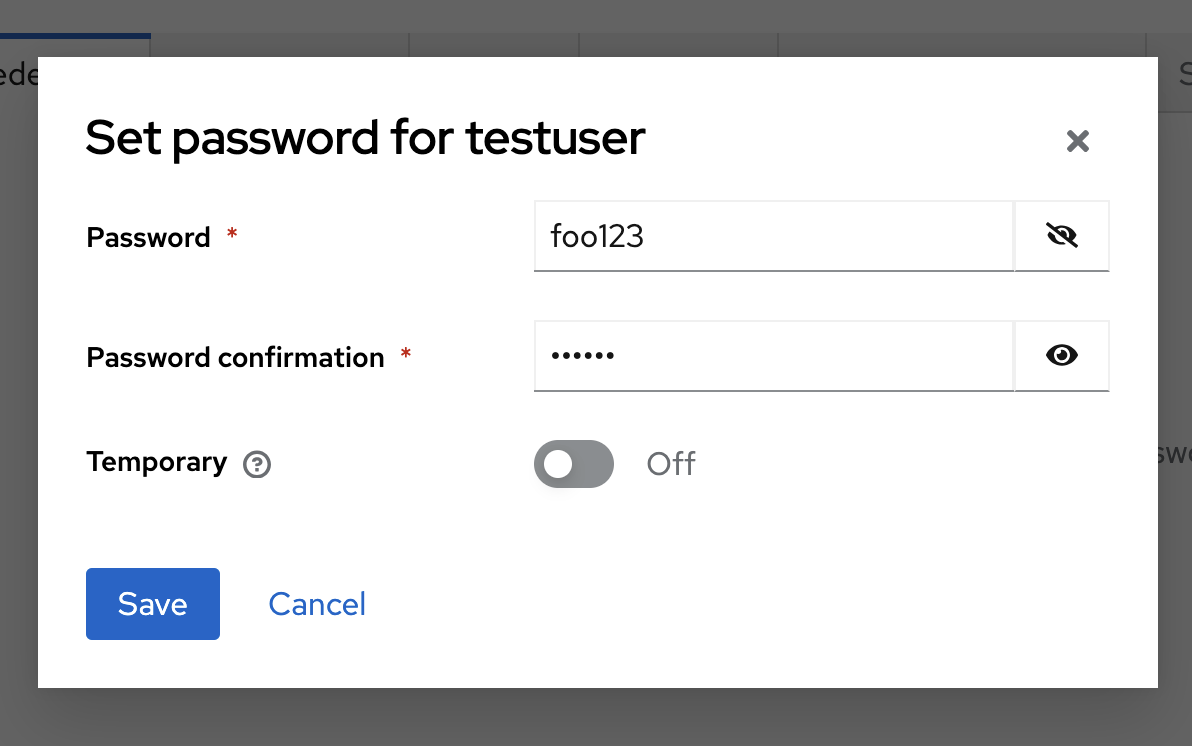
- Specify a password and click Set Password.
Step 5 - Add User in EJBCA
To add this user to the EJBCA role members list.
- In EJBCA, under System Functions, click Role.
- On the Admin role, click Members and specify one of the following:
Subject ("sub") claim: As Match Value, use the generated user id (for example: 6014419b-3787-4dbd-9825-db1d05b61814).
-OR-Issuer ("iss") claim: As Match Value, use http://localhost:8084/realms/myrealm.
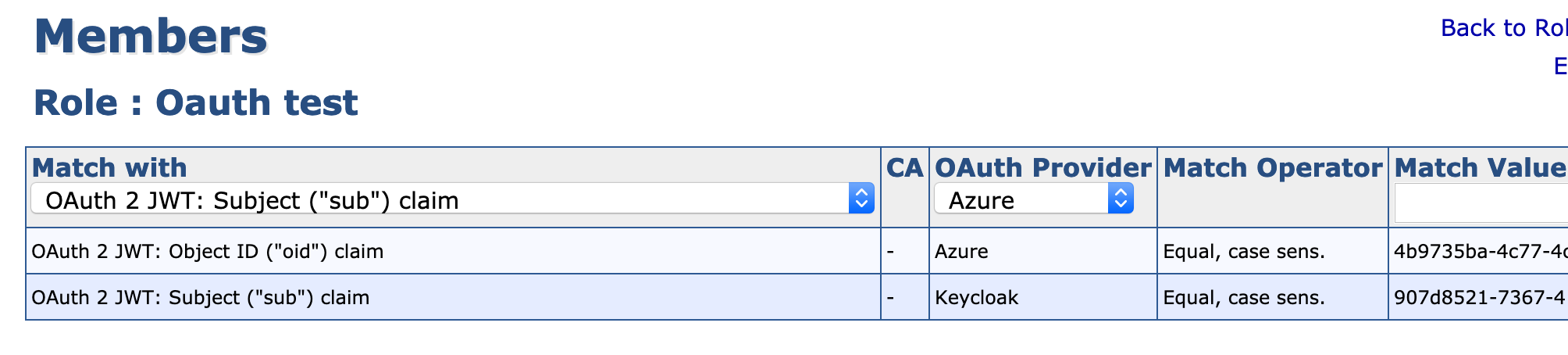
- Select OAuth provider.
- Optionally, update the access rules for the user.
Step 6 - Log in to EJBCA
- Next, to log in using EJBCA, go to https://localhost:8442/ejbca/adminweb/
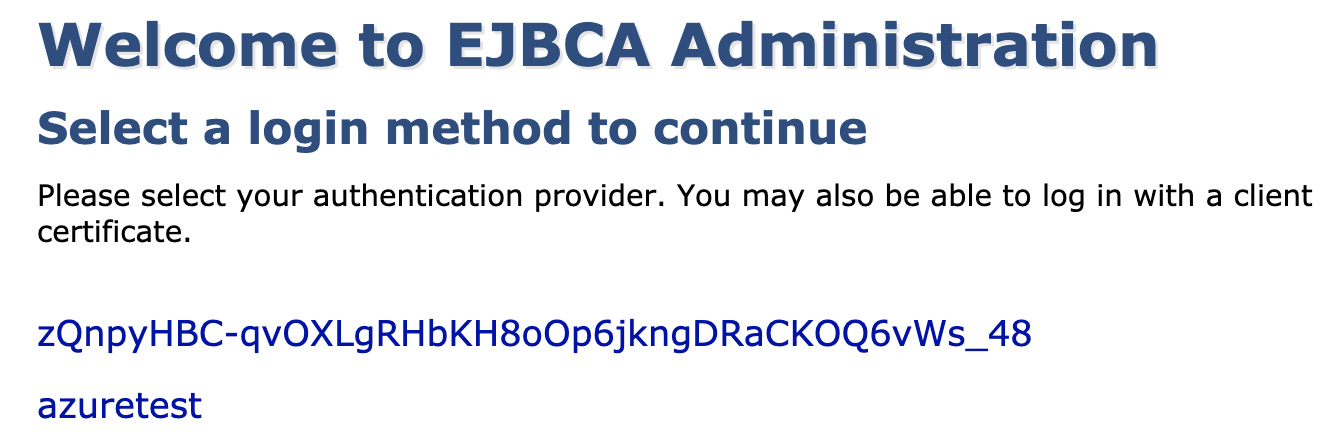
- You are redirected to the EJBCA login page, listing configured OAuth Providers.
- Click the name of your Keycloak OAuth provider to be redirected to the Keycloak login page.
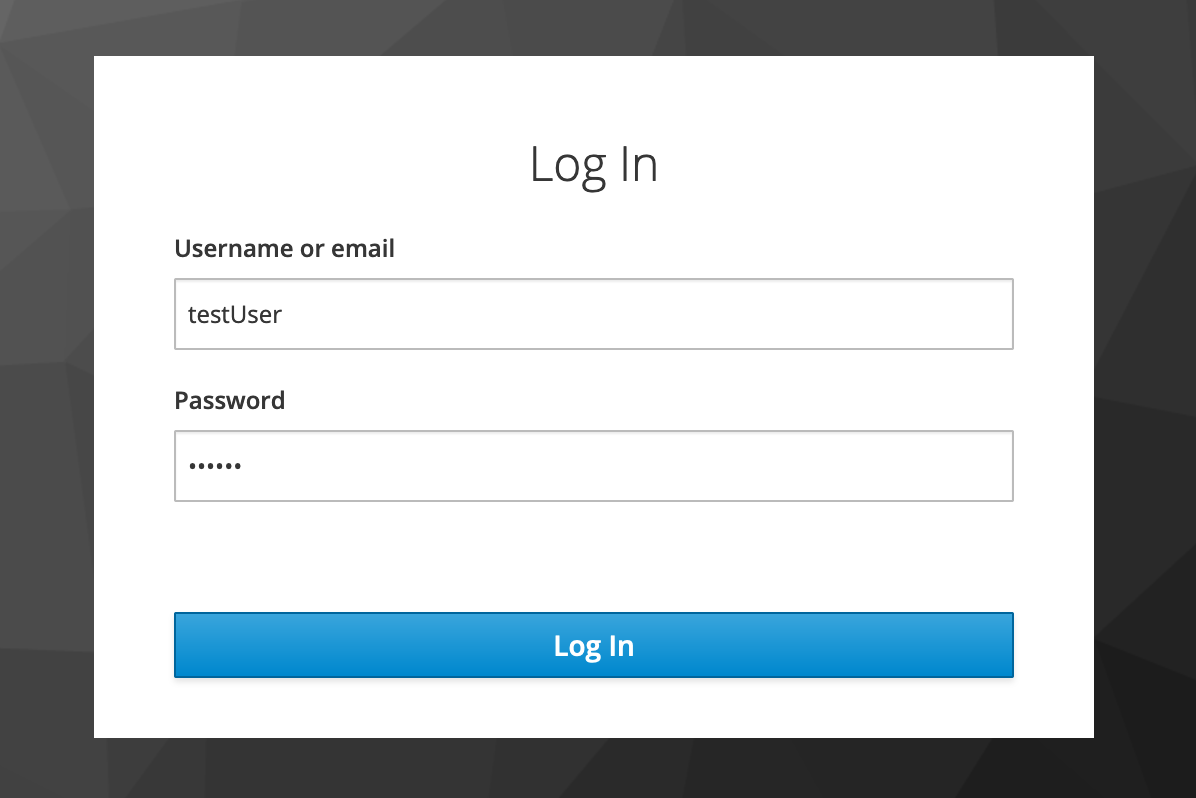
- Enter the username and password and click Log In to be redirected to EJBCA.
Additional Notes
- HTTPS can be configured on Keycloak however if the Keycloak server certificate that chains up to an root not trusted by Java you need to manually add it to Java's truststore.
Add a CA to the Java truststore in CentOS / RHEL
keytool -importcert -noprompt -trustcacerts -aliasroot -fileRoot.pem -keystore/etc/pki/java/cacerts-storepass changeit