Create a CryptoToken in SignServer with SDK3

If you have already performed these steps before creating the keys with the clientToolBox, restart SignServer using the command:
service wildfly restart
If you are creating the crypto token for the first time, proceed with the following steps:
Login to SignServer as Superadmin.
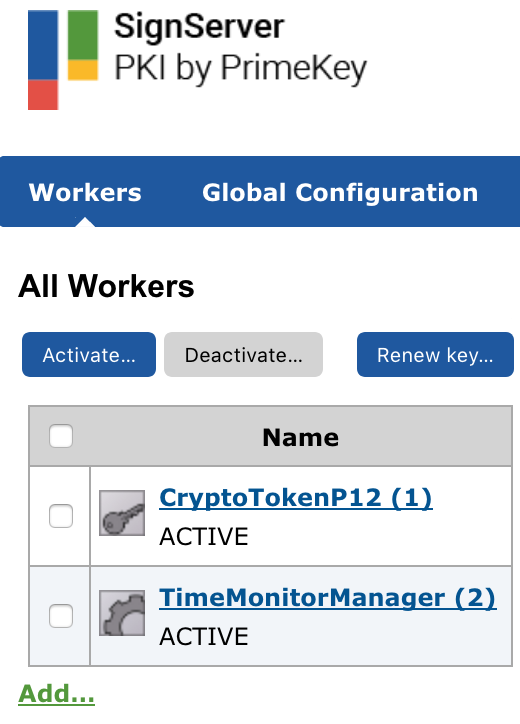
Select Add under All Workers:
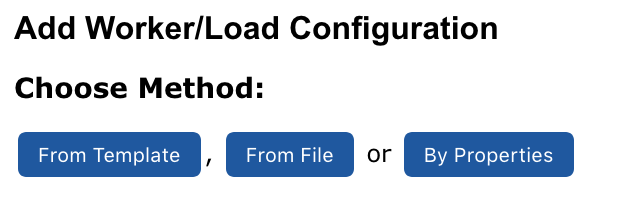
Select From Template.
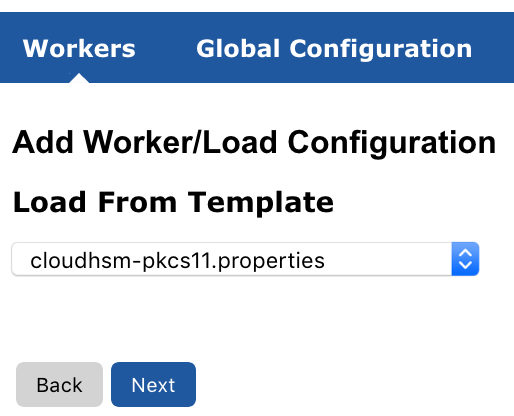
Select the cloudHSM-p11ng.properties template and click Next.
Specify the values as follows (Changing the values in bold as required):
WORKER3.IMPLEMENTATION_CLASS=org.signserver.server.signers.CryptoWorker
WORKER3.NAME=CryptoTokenP11
WORKER3.PIN=CryptoUser:CUPassword123!
WORKER3.CRYPTOTOKEN_IMPLEMENTATION_CLASS=org.signserver.server.cryptotokens.PKCS11CryptoToken
WORKER3.DEFAULTKEY=testKey0001
WORKER3.SLOTLABELVALUE=1
WORKER3.TYPE=CRYPTO_WORKER
WORKER3.SHAREDLIBRARYNAME=AWSCloudHSM
WORKER3.SLOTLABELTYPE=SLOT_NUMBER
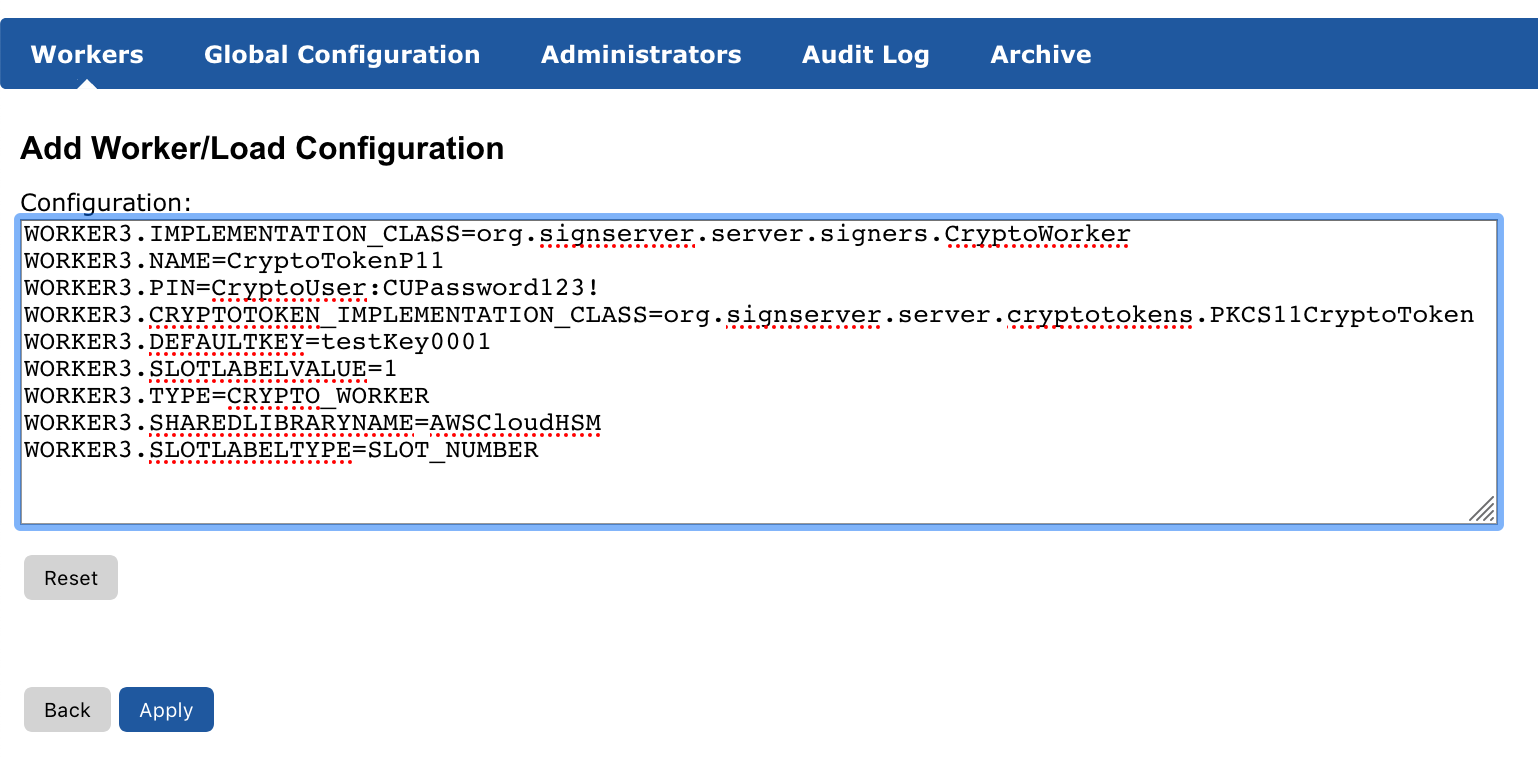
Click Apply.
The worker comes back as active.
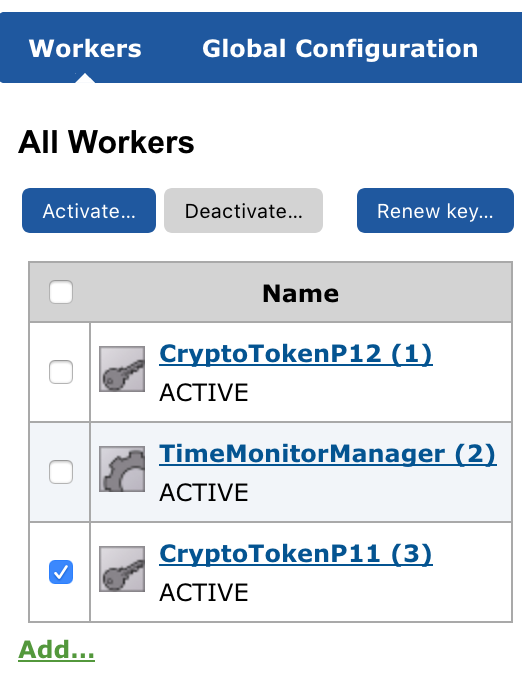
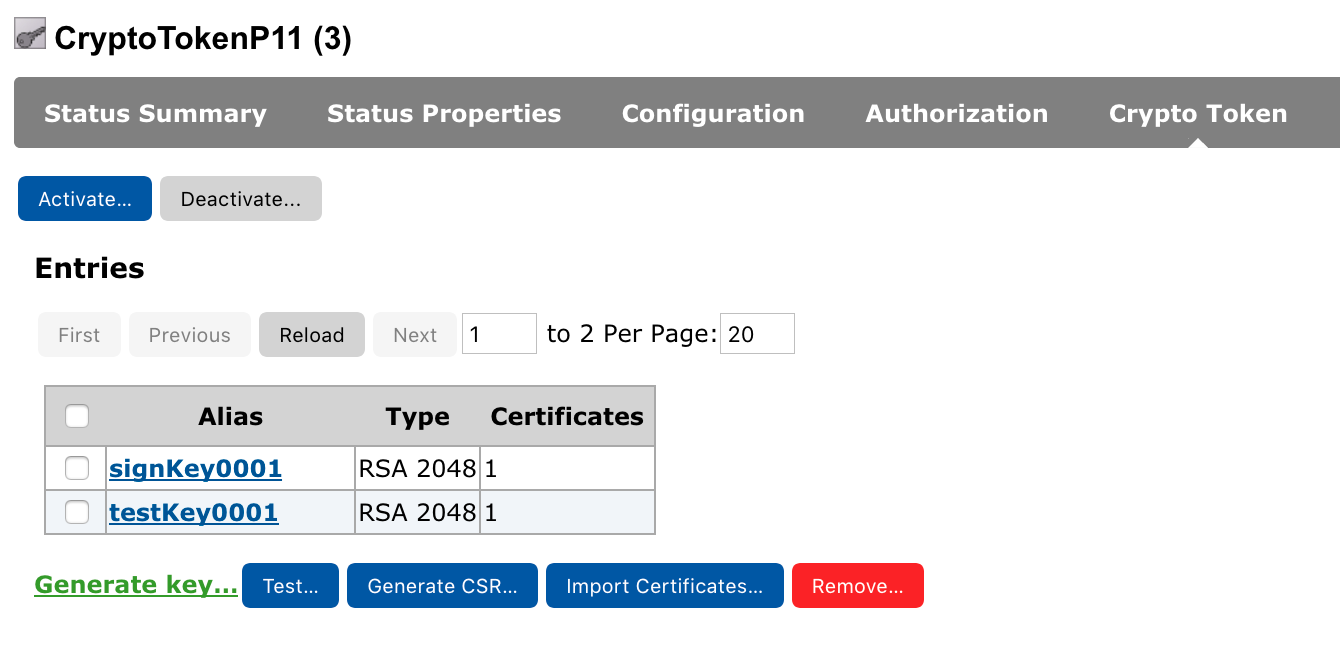
To see what keys are active in the crypto token that SignServer can see, select the CryptoTokenP11 worker.
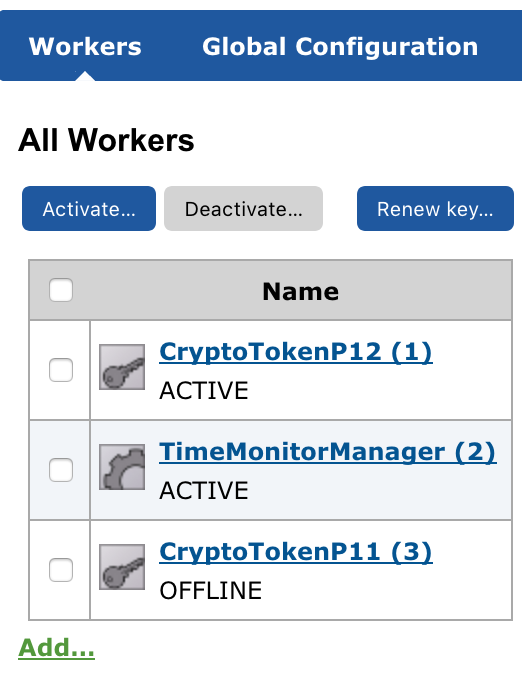
Select the Crypto Token link

The keys are displayed inside the Crypto Token.