
Settings: License Management
Manage the license for the Next Generation Hardware Appliance in the in the License Management section in Webconf.
To use the EJBCA application within the appliance the corresponding license provided by Keyfactor must be uploaded.
A valid license can be found in the download folder.
To obtain or renew an expired license contact support@keyfactor.com.
Important!
EJBCA can only be started if a valid license has been uploaded.
If an update has been performed without a valid license:
no data or key material will be lost
only the service will be discontinued
you will receive the error message No valid license found.
Log in to the Next Generation Hardware Appliance.
Open the Settings page.
In the section License Management click Upload License to open the file browser.
Select the license and upload it.
After uploading the license, it takes about 7 seconds for the success message to appear in the Webconf.The Uploaded New License with all important information is displayed on an overlay window.
Click Use New License to continue.
The uploaded license now appears in the License Management section.
Under Installed License all information about the license is displayed.
The installed license is displayed with the most important information:
Installed License |
|---|
Product Name |
Product Version |
License ID |
Customer Name |
Issued Date |
Expiration Date |
Below the information list another table displays:
the Feature and its Status / In Use.The time of the last automatic license check is displayed below the table.
To add more licenses, click Upload New License.
In the Feature section, the number of active EJBCA Active Certificates is compared with the maximum number of certificates permitted for your purchased license.
The Status/Issue column first displays the number of active certificates and then the number of valid certificates.
A warning will be displayed if the license is invalid or if more certificates are active than the license allows.

A 12-hour control interval checks the validity of the uploaded licenses.
If a license loses its validity due to reaching the maximum number of permitted certificates or due to expiry, a warning appears in the License Management section.
To upload of an expired license or the same license twice is prevented by the system in advance.
Furthermore, a banner with the warning: LICENSE NO LONGER VALID appears at the top and bottom of all pages in Webconf.
The current status of the license is also displayed on the Overview page below the application info box.
Contact support@keyfactor.com to renew the invalid license.
Only one license can be active at a time. If another license is uploaded, the Uploaded New License is compared to the Currently Installed License.
The decision is confirmed with Use New License or Cancel and the process is completed.
Important!
EJBCA will not start if no license is available.
EJBCA will also not start if the uploaded license has expired.
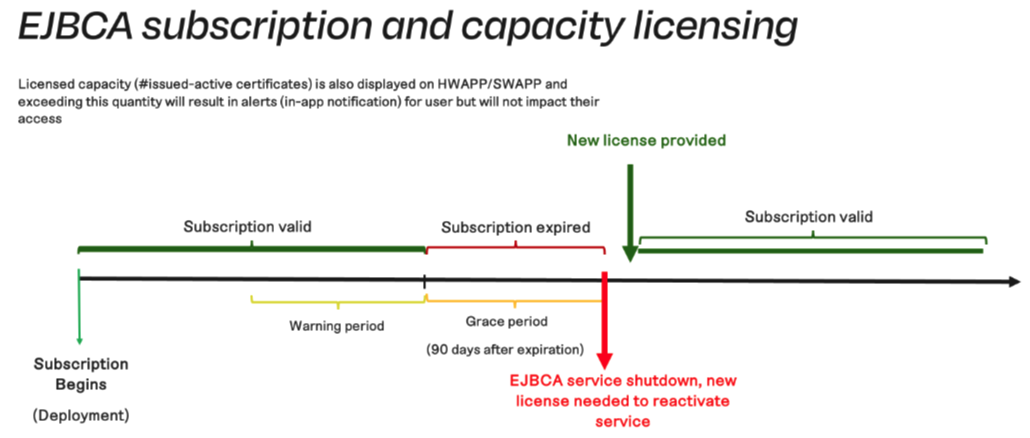
60 days before a license expires, a warning will be displayed in Webconf that EJBCA will be shut down shortly.
EJBCA remain functional for up to 90 days after the license expires (grace period). A warning (in red) is displayed to remind the user that shutdown is imminent.
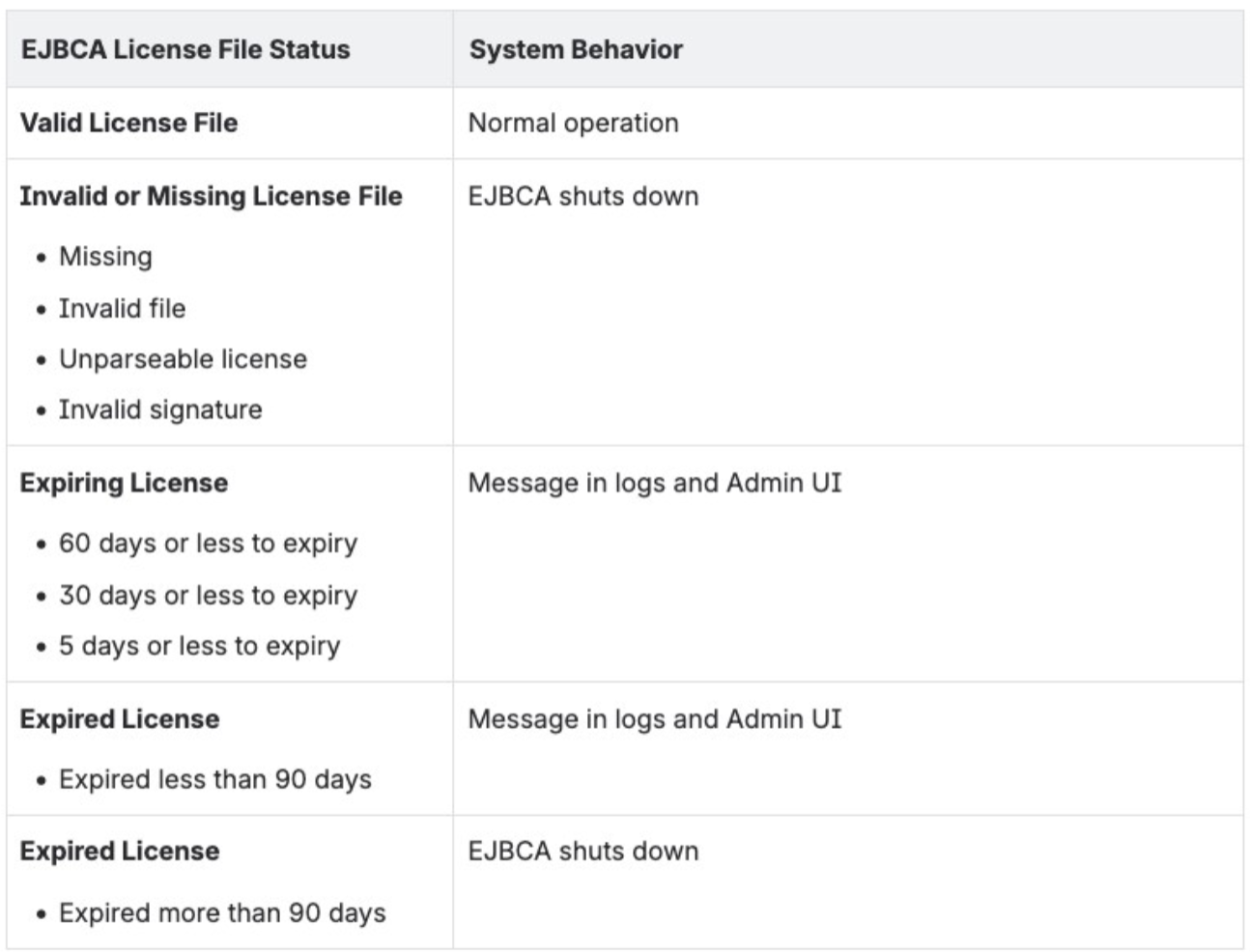
The table below summarizes the resulting system behavior in a deployed system based on the status of the EJBCA license file.
EJBCA License File Status | System Behavior |
|---|---|
Valid License File | Normal operation |
Invalid or Missing License File
| EJBCA shuts down |
Expiring License
| Message in logs and Admin UI |
Expired License
| Message in logs and Admin UI |
Expired License
| EJBCA shuts down |