
Configure EJBCA Server
ENTERPRISE
The following sections cover how to configure the EJBCA server.
Launch an EJBCA Enterprise Cloud Server from AWS
For instructions on how to deploy EJBCA Cloud from Amazon Web Services (AWS) and log in to the EJBCA Admin Web for the first time, refer to the EJBCA Cloud AWS Launch Guide.
Certificate Authority Set up
If you do not already have Certificate Authorities (CAs) configured in EJBCA, follow the EJBCA Enterprise Quick Start Guide to set up a 2 Tier CA Hierarchy.
Modify Workstation End Entity Profile
The Intune device certificates use an Organizational Unit and a Uniform Resource Identifier (URI) in the Subject Attributes.
Since these attributes were not added following the Create End Entity Profiles instructions in the EJBCA Cloud AWS Quick Start Guide, do the following to add the attributes in the Corporate Workspace End Entity Profile:
In EJBCA, under RA Functions, select End Entity Profiles.
Edit the Corporate Workspace EE Profile and update the following:
Under Subject DN Attributes, select the (OU) Organizational Unit field for subject DN, and click Add.
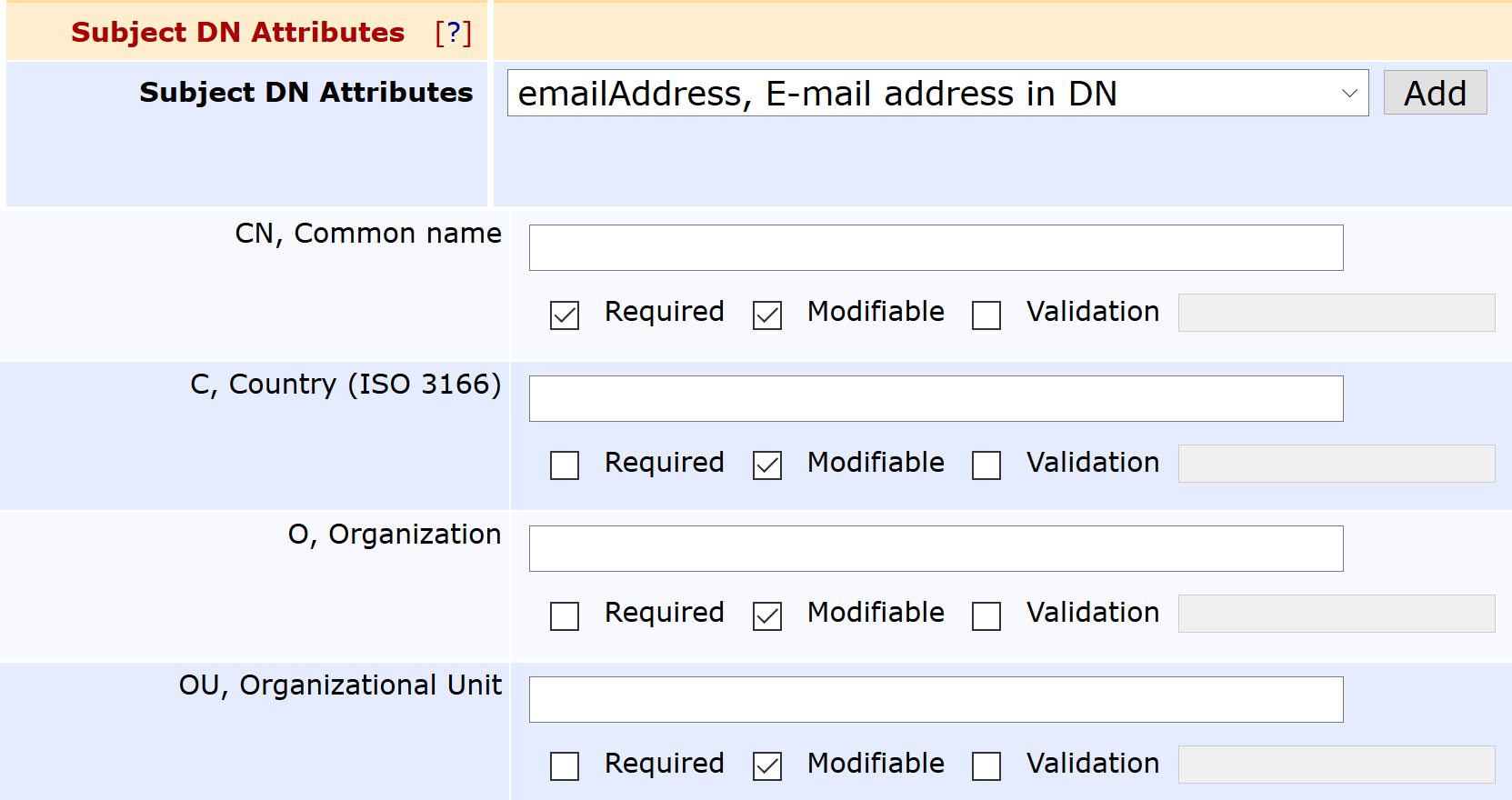
Under Other Subject Attributes, select Uniform Resource Identifier (URI), and click Add.
Click Save to save the Corporate Workspace End Entity Profile.
Configure SCEP
Follow the steps below to create a SCEP alias to issue certificates managed by Intune.
Create New SCEP Alias
To create a new SCEP alias:
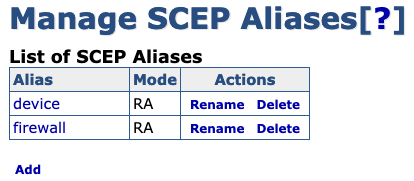
Login to EJBCA and click SCEP Configuration under System Configuration.
Click Add.
Specify a name for the new alias, in this example intune, and then click OK.
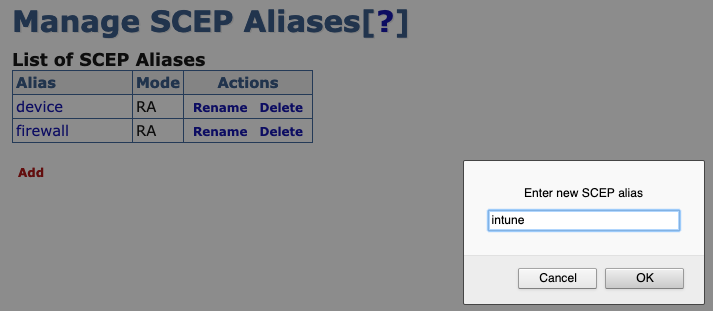
 The alias name does not have to be intune - that name is used in this example to align with configuring EJBCA to integrate with Intune.
The new SCEP alias is added to the list of aliases. Next, proceed to configure the Intune SCEP Alias.
Configure Intune SCEP Alias
The following outlines an example of how to configure the Intune SCEP Alias.

Different devices may require different configurations. For some devices, the Return full chain in GetCACert responses setting must be cleared in the alias, while for others it must be set. See SCEP Configuration Values for more information.
For Android devices, set the following:
Enable Return full chain in GetCACert responses.
For Order of the returned chain, specify Root Last.
To configure the newly created Intune SCEP alias:
Click the intune SCEP alias.
Click Switch to edit mode.
Edit the SCEP alias settings according to the following:
Operational mode: Select RA.
Authenticate through Microsoft Intune: Select.
RA End Entity Profile: Select.
RA Certificate Profile: Select the Certificate Profile configured in the End Entity Profile.
RA CA Name: Select the Issuing CA configured in the End Entity Profile.
Use separate keys for SCEP decryption: This setting may need to be enabled if the CA’s keys are on a FIPS cryptotoken. See section below.
Application ID from Azure: Enter the ID obtained from following the procedure in Configure Intune.
Application API Secret from Azure: Enter the secret obtained from following the procedure in Configure Intune.
Intune Tenant: Specify the Intune Tenant which is the fully qualified domain name (FQDN) of the organization configured in Intune.
The following fields should be left blank/empty unless using EJBCA in a private Azure cloud such as the Federal gov cloud.Azure Active Directory Auth URL: Azure Active Directory Authentication URL is for issuing the login token and must be specified if not using Azure public cloud for authentication, for example, https://login.microsoftonline.us/
Intune resource URL: Specify the token audience if not using Azure public cloud, for example, https://api.manage.microsoft.com/
Specific version of graph: The version of the graph URL. If left blank, the default is "v1.0". Note that the default graph API has changed to Microsoft Graph in EJBCA 7.9.
Graph resource URL: Auto discovery URL is only needed if not using Azure public cloud, for example, https://graph.microsoft.us
In this example, a proxy is not required for EJBCA to connect to Intune and the following settings are left at their default values: RA name generation scheme, RA name generation parameters, RA name generation prefix, and RA name generation postfix. If a proxy is required in your environment, specify the appropriate fields.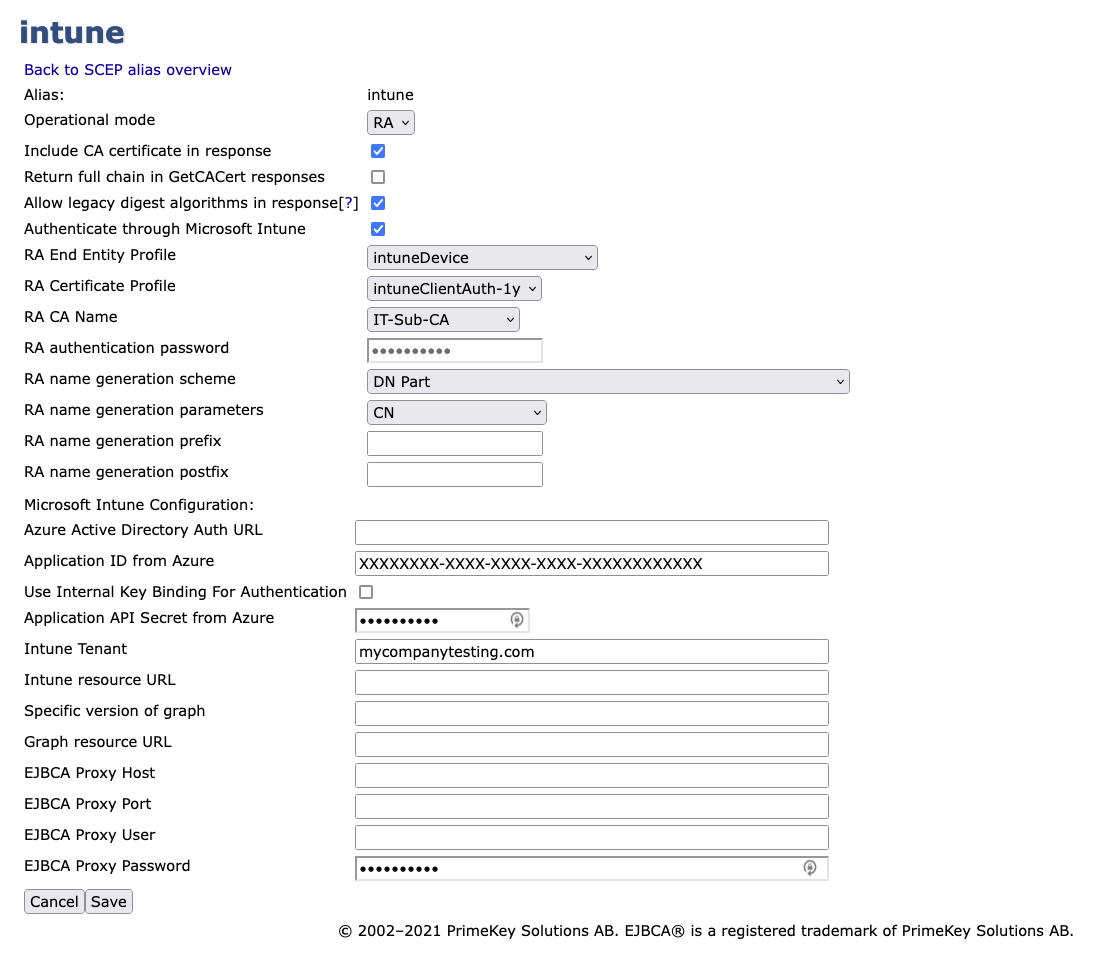
Click Save to store the Intune SCEP alias configuration.
Separate RA keys
If the CA’s keys are on a FIPS enabled cryptotoken, the token will likely be unable to decrypt messages from the Intune client (Intune encrypts messages using PKCS 1.5 padding, which is not a FIPS-supported mechanism). In this case, separate keys on a non-FIPS enabled token can be used to encrypt and sign communication with the Intune client, while the CA’s keys remain on the FIPS-enabled token.
To enable this, choose or create a non-FIPS crypto token (e.g. a “soft” token) and create two keys on that token, one for signing and one for encryption. Then configure as follows:
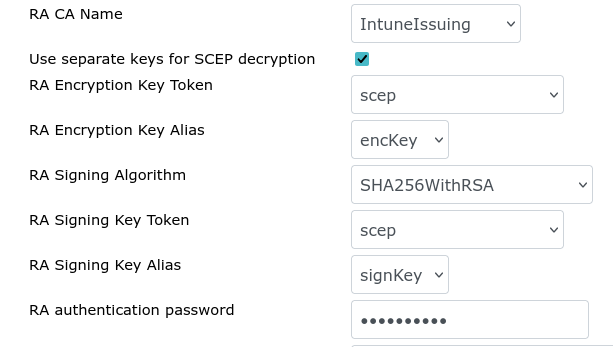
Separate RA Keys Configuration
RA Encryption Key Token: Select the cryptotoken containing the RA keys
RA Encryption Key Alias: Select the key created for encryption on the selected token.
RA Signing Algorithm: this is not used and should be left as the default value
RA Signing Key Token: Select the cryptotoken containing the RA keys.
RA Signing Key Alias: Select the key created for signing on the selected token.
Upon saving the SCEP alias configuration, two certificates will be issued for the selected keys and will be shared with the Intune client during issuance.