
Thales DPoD integration in Kubernetes
ENTERPRISE
The Thales DPoD HSM sidecar container enables integrating the application container to a network attached Thales DPoD. The following covers how to set up the integration in Kubernetes.
For more general information on the HSM integration with PKCS#11, see HSM Integration.
Prerequisites
Before using this container, you need the following:
DPoD net-HSM with fully configured secured network access.
The P11 Proxy must have network access to the HSM service (security groups, network ACLs, etc)
An existing HSM configuration file
Chrystoki.confand optionally a partition certificate filepartition-certificate.pem.
HSM driver container deployment parameters
The following lists parameters for the HSM sidecar container.
Volume mounts
The volume mount parameters are mandatory and need only be configured in the HSM sidecar container. These mounts are defined via the Helm chart under the hsm.dpod section, using Secret resources.
You can verify the configuration by checking the corresponding files inside the container after deployment.
Description | Mount point |
|---|---|
HSM Configuration file |
|
HSM Partition certificate |
|
Prepare HSM configuration

The following assumes that the HSM configuration file and optionally partition certificate are already available.
Configure the server and partition certificate:
Create a Kubernetes secret with the configuration file, and if applicable, the partition certificate for the HSM.
The filenames in the secret must remain exactly
Chrystoki.conffor the configuration file, andpartition-certificate.pemfor the partition certificate (if used).Replace
<namespace>with your deployment's namespace.BASHkubectl create secret generic hsm-dpod-secret \ -n deploymentnamespace \ --from-file=Chrystoki.conf=Chrystoki.conf \ --from-file=partition-certificate.pem=partition-certificate.pemThe name of the secret is referenced in the
values.yamlin the next section.
Configure Deployment
The following provides an example of customizing the deployment using Helm. Note that the Helm chart values file values.yaml describes an example test deployment and does not include:
Database connection.
Configured
imagePullSecretsthat may be required.TLS connection required after the deployment and creation of the CAs.

Ensure that the deployment is allowed an Egress to the physical HSM.
Make sure to adjust the values for the HSM server environment variable (server_name) and any required secrets.
#imagePullSecrets: []
ejbca:
  env:
    TLS_SETUP_ENABLED: "later"
    LOG_AUDIT_TO_DB: true
#################### HSM configuration - start ####################
hsm:
  enabled: true
  dpod:
    enabled: true
    hsmConfigurationSecret: "hsm-dpod-secret"
#################### HSM configuration - end ####################
# needed to make softhsm volume mount to work
podSecurityContext:
  fsGroup: 10001
ingress:
  enabled: true
  className: "nginx"
  annotations:
    nginx.ingress.kubernetes.io/auth-tls-verify-client: "optional_no_ca"
    #nginx.ingress.kubernetes.io/auth-tls-secret: "default/ejbca-ingress-trust-secret"
    nginx.ingress.kubernetes.io/auth-tls-pass-certificate-to-upstream: "true"
    nginx.ingress.kubernetes.io/auth-tls-verify-depth: "1"
  hosts:
    - host: "ejbcaca1.testdomain.se"
      paths:
        - path: /
          pathType: Prefix
  # tls:
  #   - hosts:
  #       - "ejbcaca1.testdomain.se"
  #     secretName: ingress-credential-secret-ca
Create and verify HSM crypto token
To create a crypto token and then test the HSM key, do the following:
In the EJBCA menu, click CA Functions > Crypto Tokens.
Click Create new and specify the following on the New Crypto Token page:
Name: Specify a name for the crypto token.
Type: Select PKCS#11 NG.
Auto-activation: Select use to allow EJBCA to save the password and reapply it after a restart so that the CA is always available.
For PKCS#11 : Reference Type, select Slot/Token Label.
For PKCS#11 : Reference, select one of the listed slots available in the HSM.
Authentication Code: Enter a password for auto-activation, the same as provided for the slot or token in the HSM.
Click Save to create the crypto token.
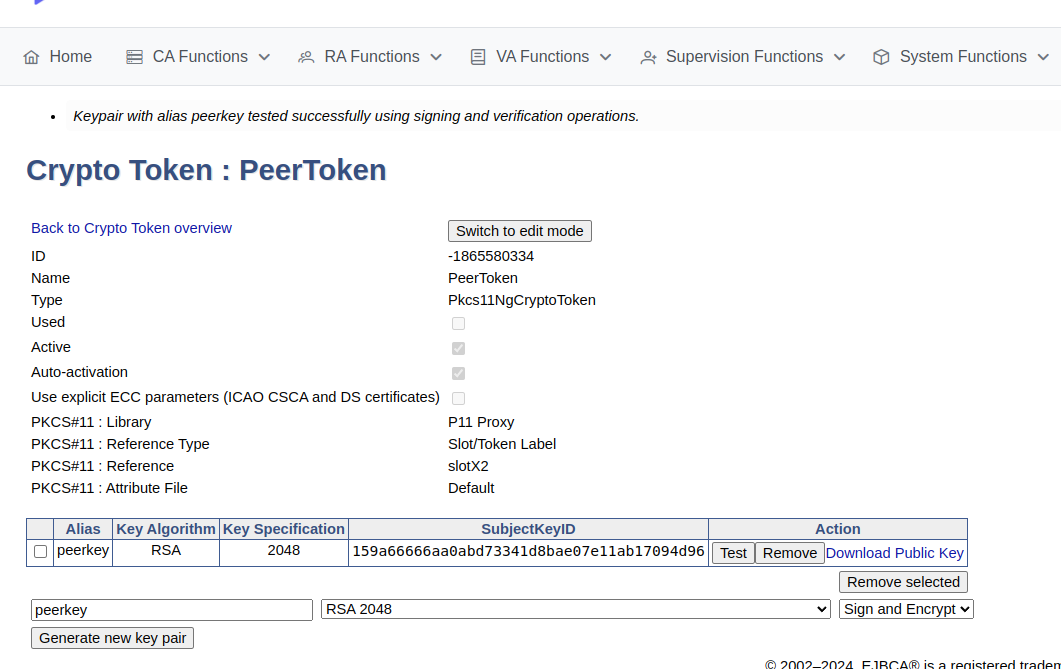
Once created, you can generate new key pairs or view any existing key pairs on the HSM.
To verify that communication with the HSM is functional, select the crypto token and click Test.
Advanced deployments
The EJBCA Enterprise configuration export/import tool EJBCA ConfigDump allows you to deploy EJBCA with automation. For information on deploying EJBCA with automation, using a soft HSM integration suitable for testing, see Deploy EJBCA as CA with automation with SoftHSM2.
Thales DPoD HSM installations can also be automated using the EJBCA ConfigDump tool. For information on how to configure the tool in Kubernetes, see EJBCA Configdump in Kubernetes.
.