
macOS Agent
The Signum macOS Agent can be installed on macOS machines to provide users with access to remote keys from Signum that can be used with Apple’s native code signing tools.
This agent also supports working with SignServer 7.4 and later. For more information about configuring this agent with SignServer, see SignServer macOS Agent documentation.
Prerequisites
macOS Sonoma 14.0 or later.
Supports ARM architecture.
Signum user needs to be a member of a policy configured to support macOS signatures. For more information on policy configuration, see Policies.
For signing macOS and iOS type binaries, Apple uses developer.apple.com to manage certificates. Specific types of certificates need to be used depending on the type of file that is being signed. For more information, consult the Apple documentation.
Install the Agent
In your download area on download.primekey.com, go to latest Signum agent folder.
Download the .pkg package.
Click on the package to install.
Follow the installer guide to complete the macOS Agent installation.
After completing the installation, three new tools are available:
SignumUtil
SignumService
SignumAgent App
The Signum macOS Agent is set up and configured using the signum-util tool. The tool is added to /usr/local/bin/signum-util by the installer and added to the users path.
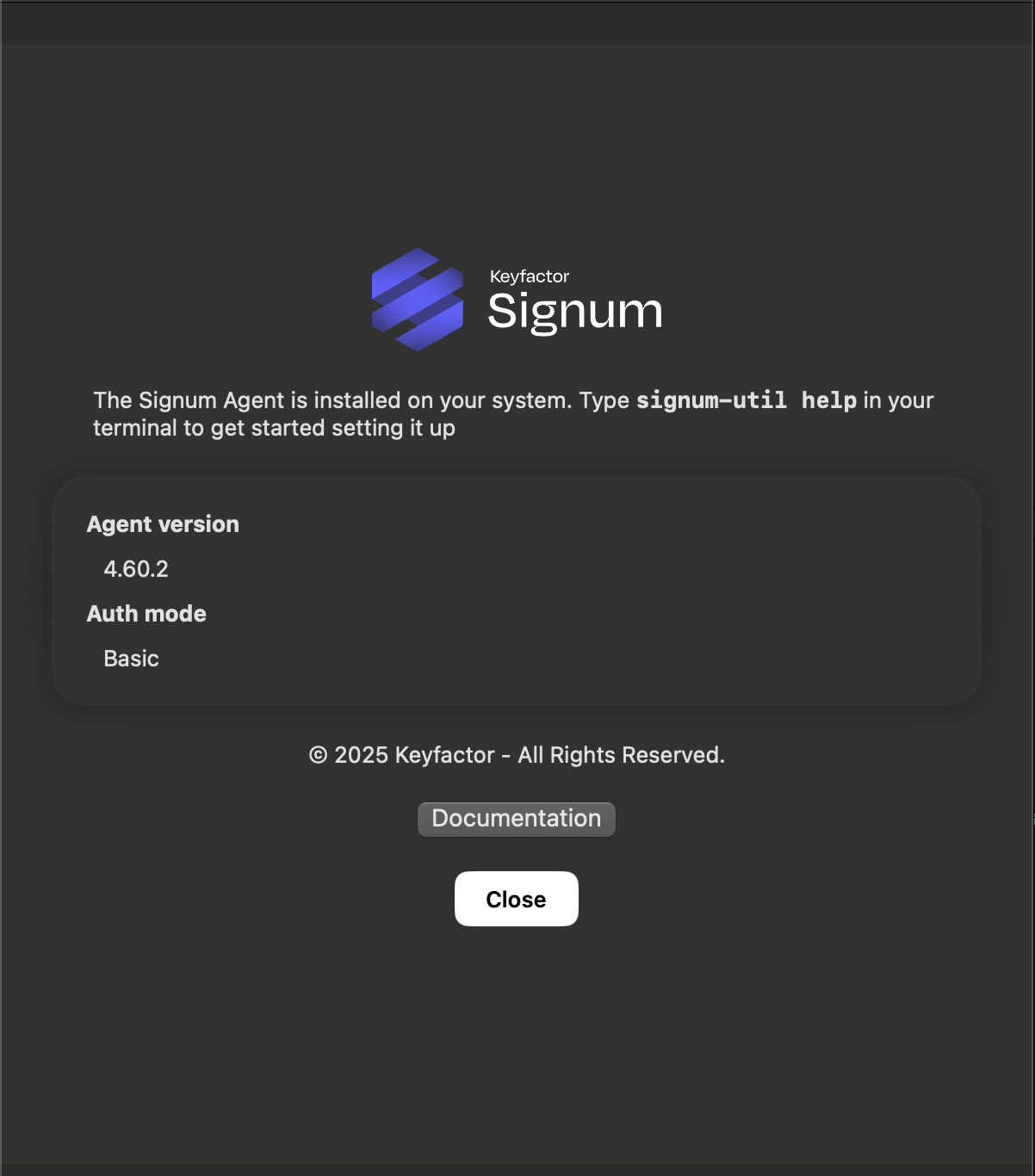

Signum Agent App only displays version information about the Agent. In a future release, this App will also provide an GUI option for configuring the Agent.
Set up the Agent
The signum-util tool supports authenticating a user to either a Signum or SignServer backend to be able to sign binaries using keys remotely stored in Signum or SignServer.
Run the following command to return information about the tool:
signum-util helpThe command returns the following:
signum-util 4.60.1+1ec280d8928cea3e631cf935eacde6b97b890895
Copyright (C) 2025 signum-util

  show, w                 Shows stored info.

  test, t                 Tests the connection to the configured instance.

  logout, l               Closes the session for the current user and deletes stored credentials.

  keychain, k             KeyChain specific actions.

  listcertificates, lc    List certificates from the server.

  setup, s                Setup Signum

  signserversetup, dss    Configures the Signum Agent for use with SignServer.

  service, ser            Signum Service related operations, requires running with elevated permissions.

  help                    Display more information on a specific command.

  version                 Display version information.

Example to setup new config:
        signum-util setup -h [HOSTNAME] -u [USERNAME] -x [PROXY]
        signum-util setup -h [HOSTNAME] -c [CERTIFICATE PATH]
        signum-util setup -h [HOSTNAME] -n [CERTIFICATE NAME]
        signum-util setup -h [HOSTNAME] -t [CERTIFICATE THUMBPRINT]
        signum-util signserversetup -c [CERTIFICATE PATH] -u [SIGNSERVER URL]
The following table describes the returned values:
Command | Usage |
|---|---|
show | Returns the current setup information if present including the server being used. |
test | Tests the connection to the configured instance. |
logout | Closes the session for the current user and deletes stored credentials. |
keychain | This command is used to add and remove certificates provided by the Signum agent to the macOS keychain. This is required to be able to use keys with native tools like Private keys cannot be exported from the HSM. |
listcertificates | Returns a list of certificates that the configured user has access to based on a policy configured in Signum or worker property in SignServer. |
setup | Use this command to configure the connection to your Signum server and authenticate your user. |
signserversetup | Use this command to configure the connection to SignServer. For more information about using the signum-util with SignServer, see SignServer documentation. |
service | Use for configuring the Signum Service. The backend value can be edited later if needed to change between working with Signum or SignServer. The service command options require elevated permissions to write to the service configuration file and to restart the service.
CODE
|
Authentication
The signum-util tool supports different authentication options based on the backend.
Authentication Option | Backend |
|---|---|
Local Users | Signum |
Certificate | Signum and SignServer |
Log In
You are prompted to enter credentials after running the setup or, if required, can pass with ‘-p’.
signum-util setup -h [HOSTNAME] -u [USERNAME]The command returns the following:
Instance [URL] successfuly reached .
User [mac@keyfactor] successfuly logged in URL.
New configuration saved successfully, some changes to system settings might require restarting SignumService.
Log in with a Certificate
To use a certificate from the macOS Keychain with the Signum agent, follow the steps below:
Open macOS Keychain Access.
Import your certificate.
Ensure the certificate appears under login>Certificates.
Verify the certificate includes a private key:
Expand the certificate entry.
Confirm the private key icon appears below the certificate.
Authorize the Signum agent (SignumService) to access the key:
Double-click the private key (not the certificate).
Go to Access Control.
Add SignumService to the list of authorized applications.
Click Save. You will be prompted for your macOS admin username and password.
Restart Keychain Access and confirm that SignumService still appears in the Access Control list.
Use one of the following command options, depending on how you want to identify the certificate:
By certificate name, where
CERTIFICATE NAMErefers to the certificate's Common Name (CN):CODEsignum-util setup -h [HOSTNAME] -n [CERTIFICATE NAME]By certificate thumbprint, where
CERTIFICATE THUMBPRINTrefers to the SHA-1 fingerprint of the certificate, without spaces, for example,CAB84110F455DB1BCFF2A0F5E7A8E983A907A5F6:CODEsignum-util setup -h [HOSTNAME] -t [CERTIFICATE THUMBPRINT]Using a p12 certificate file:
CODEsignum-util setup -h [HOSTNAME] -c [CERTIFICATE PATH]
The command returns the following:
Instance [URL] successfuly reached .
Login successful intio the instance [URL] with user [user with certificate].
New configuration saved successfully, some changes to system settings might require restarting SignumService.
Log Out
To log out, run the following command:
signum-util logoutThe command returns the following:
A total of 1 sesisons have been closed for the provided user.
Logout process started.
Successfully removed stored credentials.
List Certificates
Run the following command to list certificates:
signum-util listcertificatesSubject CN : Signum-RSA-4096
Issuer CN : BenDemoRoot-G2
Valid Until : 2029-04-22
Valid From : 2024-04-23
Thumbprint : 3AB5BFB91DFBB46CF765D5BEE51429618C4857DDKeychain
Adding to Keychain
The signum-util keychain --add command adds all certificates to the keychain:
signum-util keychain --addCertificate with alias [Signum-RSA-4096] and ID [21] was added successfully to the KeyChainAfter adding to the keychain, the certificate(s) should be listed:
sc_auth identitiesSmartCard: com.keyfactor.signum.token:21
Unpaired identities:
C08811A3E3E1CA52F4629433E700FA44B42EA701 Signum-RSA-4096Removing from Keychain
To remove certificates from the keychain, run the following command:
signum-util keychain --clearSignum certificates where successfully removed from the KeyChainAfter removing from the keychain, the certificate(s) will be removed and will not be available to the keychain.
Logging
Logs for the agent can be found in /tmp.
ls /tmp/*[Ss]ignum* Logs for the UI and token driver-specific can be found in ~/Library/Group Containers/group.com.keyfactor.signum.shared.
The log for the UI interface:
keyfactoragent.logThe log for the token being invoked by the applications using the keychain's certificates:
keyfactoragenttoken.log
Signing Example using Signum Backend
The following example shows how to configure the Agent with a key in Signum. To see an example of connecting the Agent to SignServer, see SignServer macOS Agent documentation.
Run the following command to configure and connect to the Signum Server:
signum-util setup -h URL -c 12345= -u mac@keyfactoreInstance [URL] successfuly reached .
User [mac@keyfactor] successfuly logged in URL.
New configuration saved successfully, some changes to system settings might require restarting SignumService.Run the
signum-util lccommand to list certificates:
Subject CN     : Signum-RSA-4096
    Issuer CN      : BenDemoRoot-G2
    Valid Until    : 2029-04-22
    Valid From     : 2024-04-23
Thumbprint : 3AB5BFB91DFBB46CF765D5BEE51429618C4857DDRun
signum-util keychain --addcommand to add the certificate to the keychain:
Certificate with alias [Signum-RSA-4096] and ID [21] was added successfully to the KeyChainCreate a sample file to sign:
echo "something to sign" >> test.shUse a certificate with
codesign.
The certificate must have code signing capability. To verify the certificate capabilities, run the following command:
signum-util lc -v DetailedIn this example, only the second certificate is valid for use with codesign:
➜  installer git:(poc/InitializeServiceForUserOnSign) ✗ signum-util lc -v Detailed
Subject CN     : MyCertificate1
    Issuer CN      : ManagementCA
    Valid Until    : 2026-02-06
    Valid From     : 2025-02-06
    Thumbprint     : ADB6818E772A8A747C4C1B592216DC3255533D05
    Serial Number  : 5409C71053E4C637E193CD569150D4D53C9967C8
    Key Algorithm  : RSA
    Key Size       : 2048 bits
    Signature Algo : sha256RSA
    Capability     : Client Authentication (1.3.6.1.5.5.7.3.2)
    Capability     : Email Protection (1.3.6.1.5.5.7.3.4)
Subject CN     : MyCertificate2
    Issuer CN      : ManagementCA
    Valid Until    : 2027-02-17
    Valid From     : 2025-02-17
    Thumbprint     : 5EDC77B129DEC8617DB950590D739C6BBF0BA95E
    Serial Number  : 4292EC377E6A0FD414C354FD8952B9687ABE0E08
    Key Algorithm  : RSA
    Key Size       : 2048 bits
    Signature Algo : sha256RSA
    Capability     : Code Signing (1.3.6.1.5.5.7.3.3)
Use the certificate CN value or Thumbprint to identify the key.
codesign -s "Signum-RSA-4096" test.shcodesign -s 3AB5BFB91DFBB46CF765D5BEE51429618C4857DD test.sh After signing the file, use the following command to check the signed file:
codesign -dv --verbose test.shThe command returns the following:
Executable=/Users/demo/signum-mac-demo/test.sh
Identifier=test
Format=generic
CodeDirectory v=20100 size=149 flags=0x0(none) hashes=1+2 location=embedded
Signature size=4173
Authority=Signum-RSA-4096
Authority=BenDemoRoot-G2
Signed Time=Aug 14, 2025 at 2:55:52 PM
Info.plist=not bound
TeamIdentifier=not set
Sealed Resources=none
Internal requirements count=1 size=80
Log out by running the
signum-util logoutcommand.
Troubleshooting
If any errors are returned during setup of signum-util or during signing, check the logs for more information about the root cause of the error.
The output logs for signum-util can be found under /tmp.
Some examples of issues that could cause the errors:
Incorrect certificate url: The certificate provided needs to be in a location that signum-util has permissions for. If this is the cause of the error, the logs will state that signum-util does not have permission to the provided p12.
The url provided during configuration must be only the base url. Do not include the scheme or the SignServer path.
Incorrect certificate type: The chosen certificate for signing must be a signing certificate otherwise the signing fails. The command
signum-util listcertificates -v Detailedshows the capabilities attribute:CODE% signum-util listcertificates -v Detailed Subject CN : code00001 Issuer CN : DSS Root CA 10 Valid Until : 2036-02-27 Valid From : 2016-03-03 Thumbprint : 0A9861B55542C065E68DBA15AA106C6C02095A2B Serial Number : 0DE0C0DA115F264C Key Algorithm : RSA Key Size : 2048 bits Signature Algo : sha256RSA Capability : Client Authentication (1.3.6.1.5.5.7.3.2) Capability : Code Signing (1.3.6.1.5.5.7.3.3) Capability : Email Protection (1.3.6.1.5.5.7.3.4)Worker changes not reflected in the keychain: Changes on the workers in SignServer are not directly reflected in the keychain. For every server change, execute a
listcertificatesand akeychain --addin the signum-util.TLS issues with private PKI: When running a private PKI with the Mac Agent and SignServer, TLS issues can occur, indicated by the following error:
CODEThe SSL connection could not be established, see inner exception. The remote certificate is invalid because of errors in the certificate chain: UntrustedRootTo resolve, run the following command to add the certificate to the system keychain and ensure SSL validation:
CODEsudo security add-trusted-cert -d -r trustRoot -k /Library/Keychains/System.keychsudo security add-tr